
I’ve been setting up OpenMediaVault 8 on a small GK mini PC: a quad-core Celeron, 8GB of RAM, a 128GB SATA SSD for the OS and a second SATA bay for data. OMV 8 is built on Debian 13 (Trixie). The plan was simple enough - get it on the network, add a data disk, share it over NFS. Most of it turned out to be less simple than that, so here’s what I ran into and how I got past it.
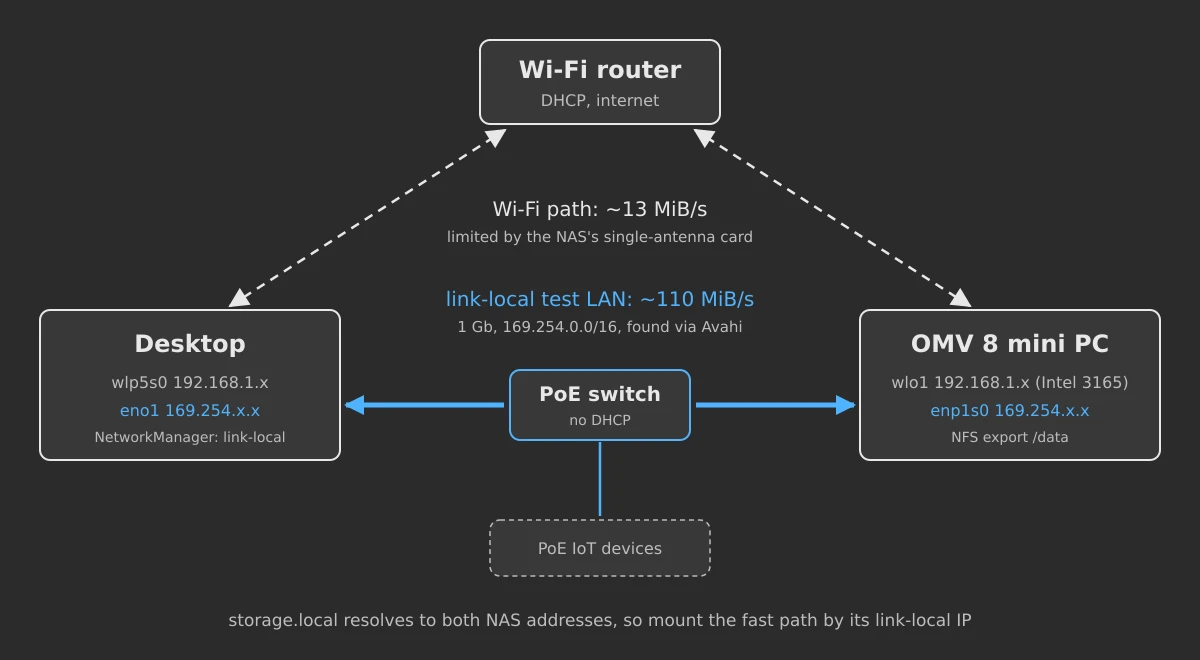
It’s a test rig for now, which explains the odd networking. A NAS should really be on wired Ethernet, but the only Ethernet I have in this room is a PoE switch running a small local test LAN for my PC and a few PoE IoT devices. There’s no router or DHCP on that LAN, so anything on it relies on link-local addresses and Avahi to find each other, and the NAS uses Wi-Fi for everything else, including the internet.
The Installer Forgets the Wi-Fi
The mini PC has Wi-Fi, and the installer asks for an SSID and passphrase. After the first boot there was no network at all.
The Debian installer does connect to Wi-Fi, and writes the settings into /etc/network/interfaces. OMV then takes over networking: it generates netplan config for systemd-networkd from its own database and blanks the installer’s file. In my case that database had no interfaces in it at all, so the generated netplan file was empty:
network:
  version: 2
  renderer: networkd
The fix is to add the interface in OMV itself - Network → Interfaces → Create → WiFi - but that needs the web UI, and the web UI needs a network. With no Ethernet cable to hand, I brought Wi-Fi up by hand from the console first:
wpa_passphrase "YourSSID" 'your-passphrase' > /etc/wpa_supplicant/wlo1.conf
wpa_supplicant -B -i wlo1 -c /etc/wpa_supplicant/wlo1.conf
That gets you associated, but not an IP address. Debian 13 no longer installs dhclient, and networkctl is now in its own systemd-networkd package. BusyBox is there for the initramfs, so busybox udhcpc -i wlo1 looks like the answer - it says it got a lease - but without its helper script it never puts the address on the interface. In the end I set it by hand:
ip addr add 192.168.1.50/24 dev wlo1
ip route add default via 192.168.1.1
After that the web UI loads. Add the Wi-Fi interface there, apply, and OMV writes proper netplan config that survives a reboot. Don’t edit the files in /etc/netplan/ directly - OMV regenerates them and your changes are lost the next time anything network related is applied.
omv-firstaid has a network option too, which may save you the manual step. I didn’t try it.
The Ethernet Port and a Two-Minute Boot
I also wanted the Ethernet port on that PoE test LAN, alongside my desktop. With no DHCP server there, the answer is link-local. Setting the port to DHCP in OMV does exactly that, because OMV’s netplan template turns on IPv4 link-local whenever you pick DHCP. When nothing answers DHCP, each machine gives itself a 169.254.x.x address and they can talk to each other on the same switch. On the desktop side a NetworkManager profile does the same:
nmcli con add type ethernet ifname eno1 con-name storage-direct \
  ipv4.method link-local ipv6.method link-local \
  ipv4.never-default yes ipv6.never-default yes
never-default stops the test LAN from ever taking over the desktop’s default route.
The catch showed up on the next reboot: the web UI took over two minutes to appear. netplan generates a drop-in for systemd-networkd-wait-online that names the Ethernet port and waits for it to be routable:
# /run/systemd/system/systemd-networkd-wait-online.service.d/10-netplan.conf
ExecStart=/lib/systemd/systemd-networkd-wait-online --any -o routable -i enp1s0
A link-local address never counts as routable, so it sits there until the timeout, and everything ordered after network-online.target - including nginx and therefore the OMV web UI - waits with it.
My first attempt was RequiredForOnline=no in a networkd drop-in for that interface. That does nothing here, because netplan passes the interface explicitly with -i. What does work is a drop-in with the same file name in /etc, which takes priority over the one netplan generates in /run:
# /etc/systemd/system/systemd-networkd-wait-online.service.d/10-netplan.conf
[Service]
ExecStart=
ExecStart=/usr/lib/systemd/systemd-networkd-wait-online --any -o routable --timeout=60
The network counts as up as soon as any interface is routable, which the Wi-Fi is within a few seconds. OMV doesn’t manage that directory, so the override survives network changes in the UI. The boot now takes about 30 seconds end to end.
Disks: One Dead, One Wiped by Mistake
The data disk was a Samsung 870 EVO 250GB. OMV wouldn’t offer it for a new filesystem because it still had partitions from a previous life, and when I tried to wipe it, it dropped off the SATA bus part way through. lsblk showed it as 0B, and the kernel log was a wall of this:
ata1.00: failed command: FLUSH CACHE EXT
ata1.00: status: { DRDY ERR }
ata1.00: error: { ABRT }
sda: detected capacity change from 488397168 to 0
It’s worth looking at what’s not there. SErr was 0x0 every time and there were no CRC errors or link resets, so the SATA link itself was fine. The drive was answering and actively refusing commands, and it refused SMART queries as well. It was on firmware SVT01B6Q, from the 870 EVO batches with a well-known early-failure problem, which Samsung later released SVT02B6Q to address. When I took it out, it had “faulty” written on it in pencil. I’d forgotten.
The replacement was another 870 EVO, this time on SVT02B6Q. SMART passed and the counters were all zero.
In between, I wiped the wrong disk. sda and sdb had swapped round, and the one I wiped was the OS. That meant a reinstall. The kernel assigns those letters in the order it detects the SATA ports, and on this box the order changes between boots. OMV itself doesn’t care, because it mounts everything by UUID, but people do. Now I run lsblk -o NAME,SIZE,MODEL,SERIAL,MOUNTPOINTS before anything destructive, and use /dev/disk/by-id/... paths in commands rather than /dev/sdX.
One harmless oddity after creating the ext4 filesystem: a failed quotaon@... unit on every boot. OMV creates ext4 with quotas built in, so they turn on when the disk mounts, and the separate quotaon service then fails with “File exists”. quotaon -p shows user and group quotas are on.
NFS
I don’t need SMB, so the shared folder is exported over NFS only. The apps that will use it (my Servarr stack) run in containers as uid 1000, and I’d created an OMV user servarr which is uid 1000, group users (gid 100). Rather than fight over ID mapping between machines (see NFSv4 and idmapd for how much fun that is), the export squashes every client to that one user:
/export/data 192.168.1.0/24(rw,async,subtree_check,insecure,all_squash,anonuid=1000,anongid=100)Whatever machine writes a file, it lands on the NAS owned by servarr:users. Put that in OMV’s Extra options field for the share.
To let the test LAN in as well, the export needs the 169.254.0.0/16 range too. The OMV UI only takes one client range per share entry, so you add a second share entry for the same folder with the other range. OMV merges the two into a single line in /etc/exports.
Bear in mind that range covers everything on the test LAN, IoT devices included, and link-local addresses are picked at random, so you can’t narrow it to one machine. With rw and all_squash that means anything on that switch can write to the share. For a test rig full of my own kit I’m fine with that, but it’s one more reason this belongs on a proper LAN eventually.
OMV also advertises NFS over Avahi out of the box, so avahi-browse finds it as _nfs._tcp with path=/export/, and the box answers to storage.local. That’s handy, with one catch: storage.local resolves to both addresses, Wi-Fi and Ethernet, and the client picks one. For the fast mount I use the link-local IP directly:
169.254.x.x:/data /mnt/storage nfs vers=4.2,_netdev,x-systemd.automount 0 0That caught me out later, when the web UI was quick one day and slow the next. It was the same thing: some sessions were going over Ethernet, others over Wi-Fi.
How Fast Is It?
With both connections in place, there are two routes between the desktop and the NAS:
I tested from the desktop with a 4GiB sequential file, dropping caches on both ends before reading it back, and 5,000 4KiB files:
Ethernet, sync | Ethernet, async | Wi-Fi, sync | |
|---|---|---|---|
| Large write | 107 MiB/s | 110 MiB/s | 13 MiB/s |
| Large read | 112 MiB/s | 112 MiB/s | 13 MiB/s |
| Small file create | 124 files/s | 901 files/s | 85 files/s |
| Small file read | 917 files/s | 918 files/s | 148 files/s |
| Small file delete | 218 files/s | 1,295 files/s | 186 files/s |
Over Ethernet, large files run at the practical limit of gigabit Ethernet in both directions.
The Wi-Fi is limited by the mini PC’s card, an Intel Wireless 3165 with a single antenna. It connects fine, but 13 MiB/s is about all it will do. The desktop at the other end was on a 650 Mbit/s link, so it wasn’t the router.
Small-file creation was the surprise. With OMV’s default sync export, the server has to write every file to disk before it replies. Locally the SSD creates 5,000 small files in half a second, but only around 300 a second when each one is forced to disk, and NFS adds a network round trip on top. Changing the export to async made creates and deletes six to seven times faster. The cost is that if the NAS crashes or loses power, the last few seconds of writes the clients were told had been saved could be lost. For what I’m storing that’s acceptable. If yours matters, keep sync: large files run at full speed either way.
Odds and Ends
- Updates run on their own. Partway through all this, an automatic upgrade took OMV from 8.3 to 8.5 while I was applying a change. The apply failed with
ModuleNotFoundError: No module named 'openmediavault', becauseomv-saltruns on Salt’s bundled Python, which was being upgraded at that moment. Waiting for dpkg to finish and applying again fixed it. - 8.5 moves to a backports kernel. After that upgrade the box booted 7.1.8 from Debian backports, rather than Trixie’s 6.12. Given my history with NFS hangs on 7.1 clients, I’m keeping an eye on it, although the NAS is the server side of that.
- Applying changes is slow. Every apply in OMV runs a SaltStack deployment, and on a Celeron that takes anything from several seconds to a minute. Wait for the progress dialog to close before deciding it didn’t work.
- The FileBrowser plugin. It runs FileBrowser Quantum in podman behind a Caddy proxy on port 3670. The login is
admin/admin, and it has its own user database, entirely separate from OMV’s users. It’s not a bad interface, but with NFS in place I doubt I’ll use it, so it’s disabled.
References
See also: autofs, Nautilus NFS Browser, NFS Hang Troubleshooting Guide