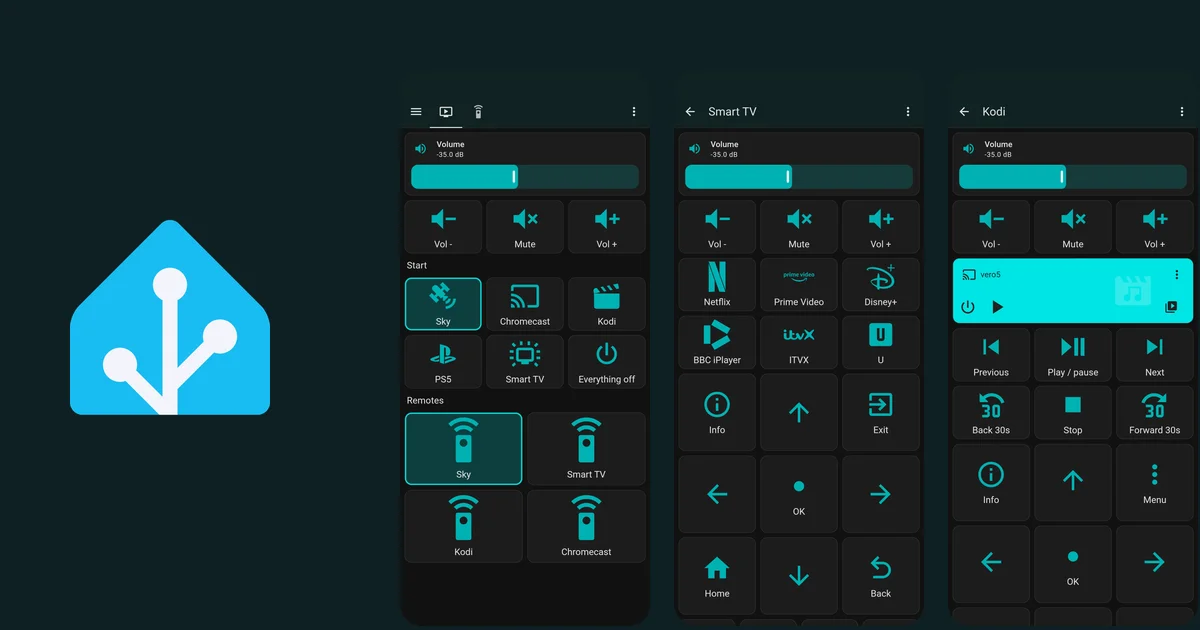
In the last post I replaced a Logitech Harmony with Home Assistant pages on my phone. After a few days of using the app it was a genuine replacement. One thing was still keeping the Harmony on the coffee table: it’s a thing you pick up without looking.
A phone isn’t that. You unlock it, find the app, find the page. Anyone else in the house needs the app on their own phone first, and for some people the technology itself is a barrier. I wanted something with buttons.
Searching for the wrong thing
I started with “TV remote control” and worked through the results. Everything I found was a good answer to a slightly different question.
Zigbee remotes. I already run Zigbee2MQTT, so these were the obvious first look. They’re cheap and last a year on a coin cell. But they have four to six buttons. A d-pad, volume, OK, back and a few transport keys is already past that.
An ESP32 with a touchscreen. A 4 inch ESP32-S3 board with an LVGL screen would give me exactly the layout I wanted. It would also give me a remote that needs charging every day or two, because WiFi and a lit screen eat a battery. I wondered about e-ink to fix the power draw. E-ink makes the screen cheap, but the radio is the same radio.
An ESP32 on Zigbee. Some of the newer chips can speak Zigbee, which fixes the battery problem. You then build a remote from scratch, which is a project in its own right.
M5Stack gadgets. The M5StickS3 is a pretty little thing. The Tab5 (an ESP32-P4 with a big screen) is better, and I’d talked myself into an MQTT-driven touch remote built with ESPHome or Arduino. I’m still tempted. But it’s a screen, and it has the same battery and “pick up and look at it” problem as the phone. I’m treating it as a side project, not as the answer.
Learning IR into a Flirc. I own a Flirc, a USB receiver that turns infrared presses into keystrokes. It’s old, and I’d still need a handset with the buttons.
Nothing fitted. Each option was either too few buttons, too much battery, or too much building.
Then I searched for something else
Eventually the listings stopped saying “TV remote” and started saying “air mouse”, “fly mouse” and “2.4GHz wireless keyboard”. These are remotes made for Android TV boxes and home-theatre PCs, with a USB dongle and a small keyboard on the back.
The Rii i25 has a d-pad, OK, back, volume, page up and down, media keys, mute, power, home, search and a menu key. The dongle goes in a spare USB port on the NUC. No pairing, no app. I’d been searching for a TV remote when what I needed was a keyboard that pretends to be one.
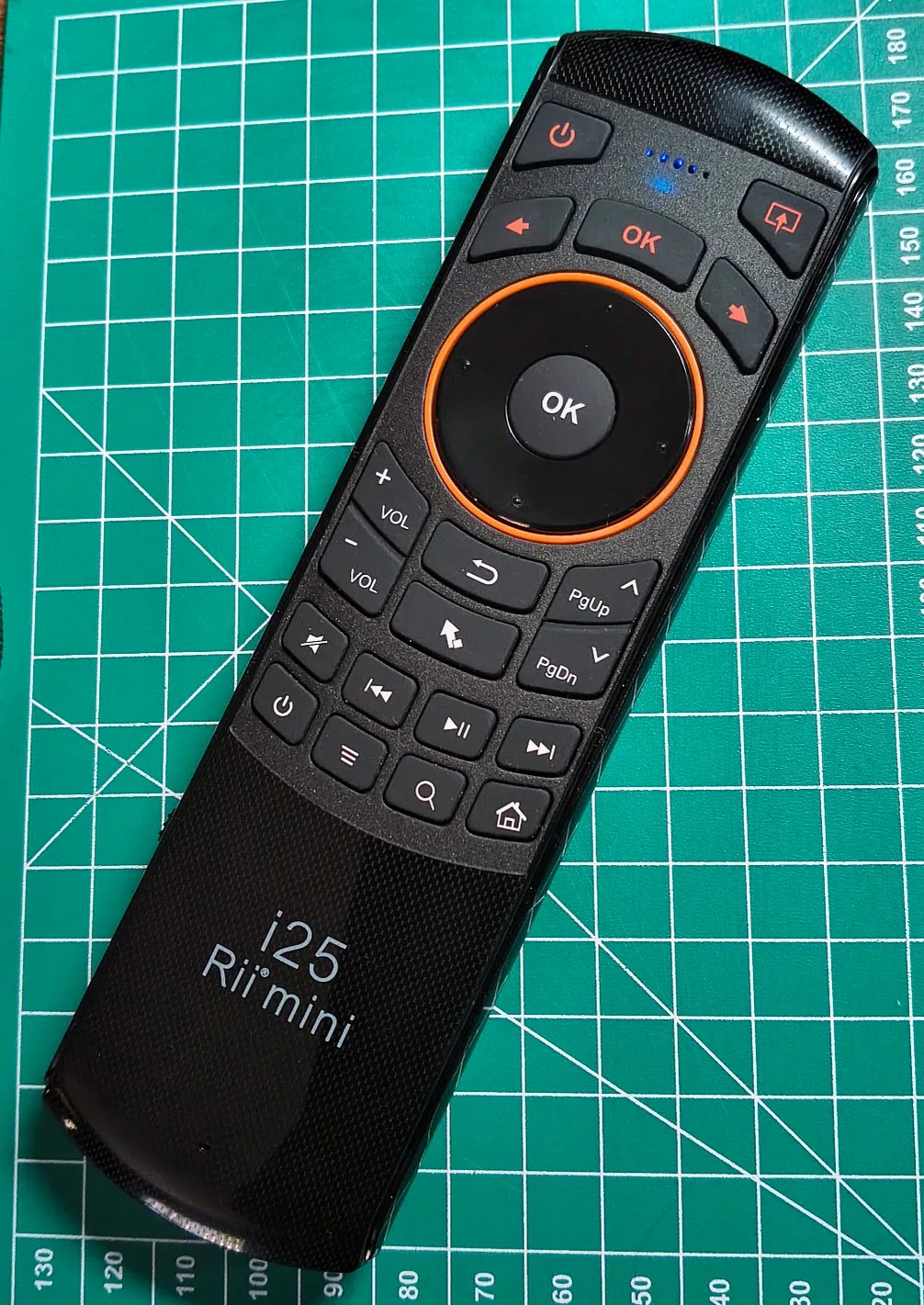
Flip it over and it’s a thumb keyboard:
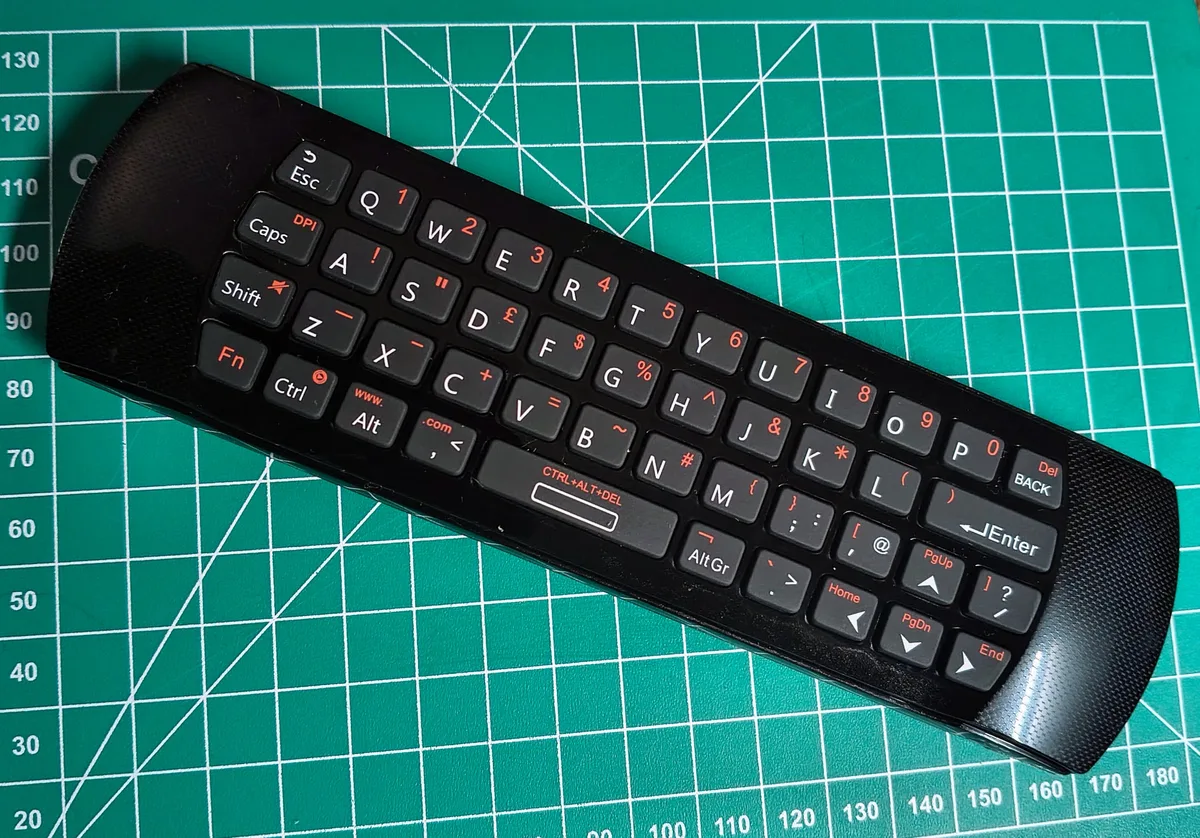
It isn’t perfect. It has no red, green, yellow and blue buttons, which I’d wanted. Some keys, such as the top power key, the source key and the row beneath it, are coloured red because they’re infrared only: they learn codes from another remote and send them over IR. That’s no good here, since the dongle is the only thing the NUC can hear. There’s also a mouse mode that turns OK and Back into mouse clicks. It’s a compromise, and I knew it before I bought it.
What the NUC sees
Home Assistant has a keyboard_remote integration. It reads Linux input devices directly and fires an event for each key. Getting there had four wrinkles.
The dongle is four devices. The i25’s receiver shows up as a keyboard, a mouse, a “system control” device and a consumer-control device. Different keys arrive on different ones, and the system-control device has no stable ID, so I match it by name.
The container couldn’t see them. The dongle was plugged in after Home Assistant started, and a running container doesn’t learn about new devices. Bind-mounting /dev/input fixed that.
The integration takes the keys exclusively. The keyboard_remote devices are grabbed, so the keys don’t reach the NUC’s own console. That’s what I wanted. It also means a key you misconfigure just disappears.
I listened for the wrong event. I’d guessed the event name and saw nothing. Home Assistant calls it keyboard_remote_command_received.
To learn the layout I wrote a short recorder that printed the key code and device for every press, then pressed the buttons in a known order. The first listing didn’t look right against the order I’d pressed, so I re-read the events and checked the last fourteen. The key labelled only with an arrow was the odd one, and I’d guessed it was a menu key.
One key, different job per activity
The Harmony needed a separate command set per device. This doesn’t, because Home Assistant already knows what’s on screen. A sensor called media_activity says whether the TV is showing Sky, Kodi, the PS5, the Chromecast or its own apps. A single script, remote_key, takes a key name and looks it up in a table keyed by that activity.
Up, down, left, right and OK go to Kodi’s JSON-RPC when Kodi is on, to the Sky box’s remote protocol when Sky is on, and to the LG’s webOS API when it’s the TV’s own apps. Volume goes straight to the receiver whatever is on screen, and holding the key repeats it.
Three keys needed a decision rather than a lookup:
- Home means “the home screen of whatever is on”. That’s Kodi’s Home, the LG’s launcher, and on Sky it’s the channel listing, which I got wrong at first by sending Sky’s Services key. With the TV off it turns on to Sky, because that’s what the house watches.
- The three-line key is a menu or context key.
- Search runs a source chase, which is the part I’m happiest with.
The source chase, and why the TV helped
Pressing Source on the old remote cycled through inputs. On this remote there’s one source key, and it’s an IR key I can’t read. So the search key does the cycling in software: Sky, Chromecast, Kodi, PS5, Smart TV, in that order, each one switched on as it’s reached.
That worked, but you can’t see which input you’re on without looking at the screen. I wanted the choice shown on the TV.
The LG can show a small pop-up in the corner, the kind you see when you plug in a device. Home Assistant can send one with the notify service for webOS. I only found it by asking whether Home Assistant could put anything on the TV screen. So each step of the chase now sends a short message with the name of the input. Messages queue, so a fast chase shows each name in turn, which I can live with.
I wanted the logo of the source as well as its name, and that took far longer than the rest of the remote put together. Home Assistant’s connection to the LG accepts an icon with the message and then ignores it, so every toast gets the same speech bubble. I tried embedded images at three sizes, web addresses, app IDs, system icon paths and a call to close the previous toast. The TV said yes to all of them and drew nothing different.
What worked was going round the front door. LG has a Developer Mode, switched on with an app from its store, which opens an SSH shell on the TV. From there you can call the same notification service directly, and it takes a plain path to an 80 x 80 PNG stored on the TV. The first icon that appeared was the USB one, from a file in a system folder whose name has a space in it. Then I drew five of my own: Sky, Kodi, the PS5, the Chromecast and the TV’s own apps. My first set had rounded corners on a transparent background, and the TV painted the corners black. Square, solid-colour icons fixed that.
It comes with strings attached. Developer Mode runs out after 1,000 hours, about six weeks, and has to be extended with the TV switched on, so Home Assistant now does that itself a minute after the TV next turns on when it’s due. If the shell stops working, the chase falls back to the plain text toast and nothing else breaks. Everything else about the TV goes through the normal routes. The icons are the only thing that depends on it.
One more wrinkle cost me an evening. Running the command from Home Assistant reported success every time and drew nothing. The TV’s command only works when SSH gives it a terminal, and without one it quietly does nothing and exits cleanly. Adding -tt to the SSH call fixed it. A success message that doesn’t check the output is worth nothing.
Gating it
Before I touched the household’s TV I added a switch. A helper called Remote keys live defaults to off. While it’s off, every key press is only written to a text field saying what it would have sent, and nothing leaves Home Assistant. I tested the whole table against that, then switched it on for real.
What I got wrong on the way
Three things were wrong.
- The Record button on my Sky page was labelled Red and sent the red key. On the real Sky remote that button records, so it now says Record.
- Home on Sky is the channel listing, and I’d first given the Home key a job that ignored that.
- The Smart TV keys did nothing at all. When the LG is running its own apps, the receiver is on its ARC input and the TV still reports HDMI 2, and my activity sensor read that as “something else”. There’s no mapping for “something else”, so the key press was logged as sent to nothing. The fix was one line in the sensor. I only found it because the key log said what it had decided for each press, which is what that log was for.
Where it stands
The i25 works well on Sky and Kodi, and works on the TV’s own apps now that the sensor knows what ARC means. It’s a good remote for the sofa, even if it isn’t the remote I’d have designed.
I haven’t proved everything. Typing is the main gap. The keyboard on the back would be useful for the search boxes in Kodi and the TV’s apps, but I haven’t built a typing mode, and Sky’s box can’t take letters from Home Assistant at all, so that’s out. The PS5 and Chromecast keys are mapped but I haven’t tested them properly, and the power key runs the “everything off” script, which I’d like to watch go through once before I trust it.
The lesson is about searching. I kept looking for a finished TV remote, and the answer was in a different product category with a different name: a thing made for a media PC, which is what the NUC is.