When I set out to replace my Harmony Elite, it felt like chasing a unicorn. I’ve written about the Home Assistant pages that took over the thinking, and about the air mouse that gave me something to hold. In the second of those I dismissed an ESP32 touchscreen as a side project with the same battery problem as a phone.
I couldn’t leave it alone. This is what happened when I stopped dismissing it.
Chasing a unicorn
Nothing on the market did what I wanted. I found one promising device that was still in development and impossible to get hold of, which is no use when you want to know whether it works. I thought about building my own Android solution. Then I started reading about ESP32-C6 boards from Waveshare.
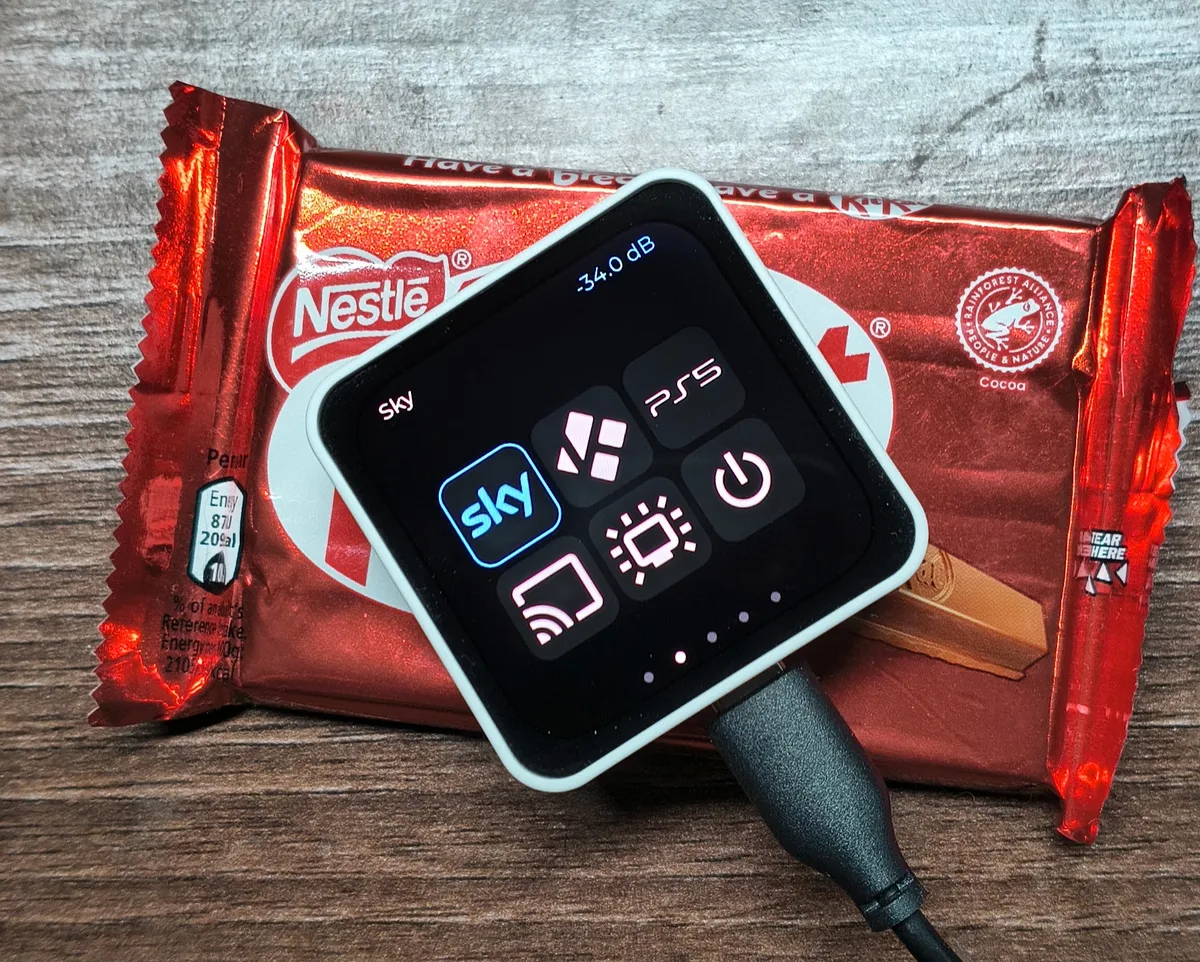
The ESP32-C6 is a small chip with Wi-Fi 6, Bluetooth LE and Zigbee in it. My first idea was one of Waveshare’s touch LCD boards. It would have needed me to print a case and track down a suitable battery, so I cancelled the order before it arrived. Then I tripped over their 2.16 inch AMOLED version, which comes ready-made in a case and, going by the listing, with a battery.
I ordered one. It arrived without a battery. That’s a problem I’ll come back to.
It’s smaller than the chocolate bar
The board has a single 160 MHz core, 512 KB of RAM with no extra PSRAM, and 16 MB of flash. The screen is a square 480 by 480 AMOLED with capacitive touch. There’s also a motion sensor, a speaker, and a power chip that handles charging. It’s a lot of hardware for something that fits in one hand.
AMOLED matters here. Black pixels are switched off, so a dark interface costs almost nothing in power, and the whole interface is dark for that reason.
What I meant by “I”
When I say “I” about the firmware, I mean Claude. This is the first project where I haven’t written a single line of code. I described what I wanted and tested it, and Claude built the rest from my prompts alone.
The board arrived around 2pm. By 7pm it was a fully working remote. Some of the groundwork was already there: I’d had a Zigbee prototype running on a spare ESP32-C6 board earlier in the week, and Claude and I had already agreed how the remote would talk to Home Assistant. Even so, the time from “it’s on the desk” to “I’m changing the Sky box with it” was five hours.
The numbers for that first day: ten commits, roughly 1,700 lines of C++ in a handful of files, and 170 lines of Home Assistant YAML. (Three days on it is 44 commits and about 2,600 lines, and the page descriptions below are the current ones.) What I did was plug the board in, paste in what the computer reported, say what I saw, and say what I wanted different.
How it fits together
The remote doesn’t know anything about my equipment. It sends messages like “up”, “select” or “volume went up one step” over Wi-Fi using MQTT, to the Mosquitto broker I already run, and Home Assistant decides what each one means.
That part was easy because the hard work was already done. The remote_key script from the air mouse post already routes a key by what’s really on screen: Kodi, the Sky box, the LG’s own apps. Claude read my existing scripts and dashboards and reused them, so the touchscreen goes through the same table as the air mouse. It also respects the same “Remote keys live” switch, so I could test the whole thing in dry-run before it touched the TV.
Home Assistant sends information back too. It publishes what’s on, the label to show at the top of the screen, the receiver’s own volume reading in dB, and whether it’s muted. The broker keeps the last message, so the remote has the current state the moment it connects.
I did try Zigbee first, on that spare board. It joined my network, but I moved to Wi-Fi once I saw I’d get kept state for free and wouldn’t need a custom converter. One wrinkle for anyone repeating it: the newer version of Espressif’s Zigbee library never completed a join with my setup, and the older one joined first time.
Security was a decision I wanted to make explicitly. The connection uses TLS and checks the broker’s certificate against my own certificate authority, with no option to skip the check. The remote has its own broker login that can only touch its own topics. The Wi-Fi and broker passwords are in the board’s flash storage, not in the code. The chip can also burn permanent security fuses for encrypted flash and signed boot images, and I said no. If you get one wrong on your only board you can lock yourself out. The cost is that anyone with the remote and a USB cable can read the passwords off it. The broker login I can revoke in a minute. The Wi-Fi password is the weaker point, and Claude suggested moving the remote onto my separate IoT network so that matters less, which I haven’t tried yet.
The interface
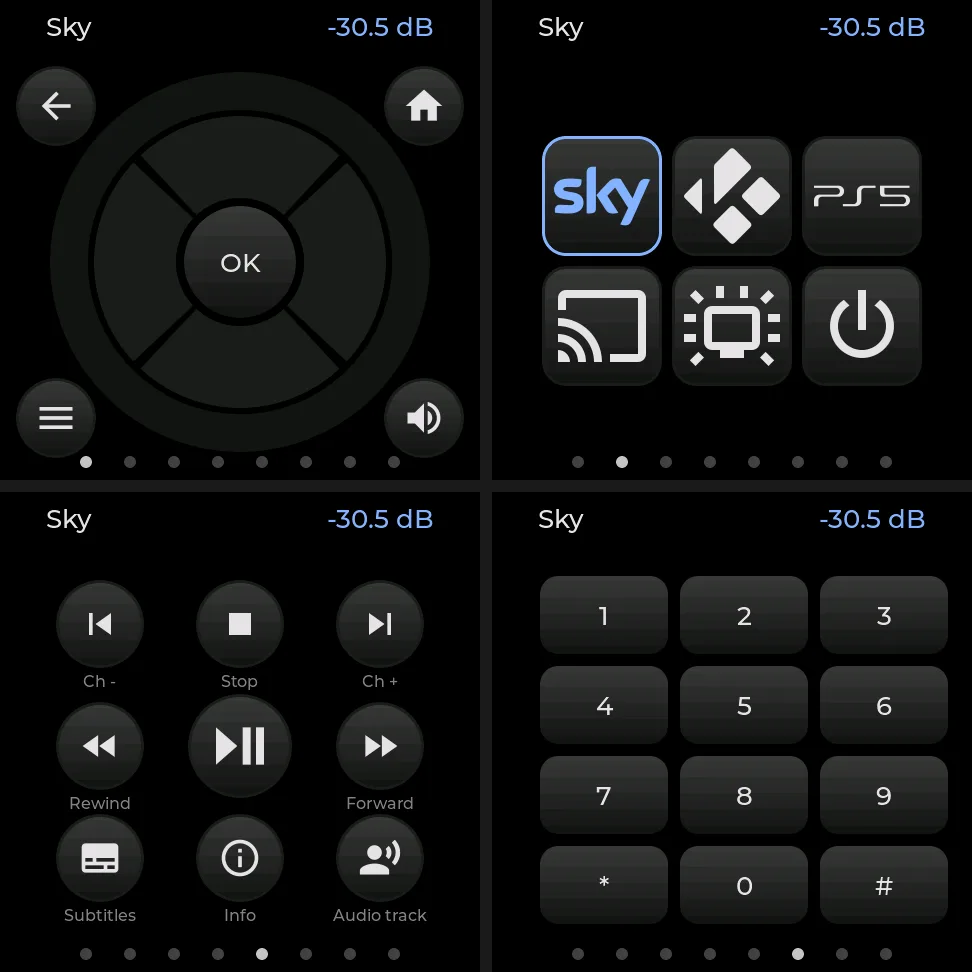
There are eight pages now. It started with five. You drag a thumb across any empty part of the screen and it turns a page for every 70 pixels, in either direction, without lifting. You can also tap a dot, or press the BOOT button on the side, which steps through the pages in a loop. I’d noticed we weren’t using the physical buttons at all.
The click-wheel is my favourite. There’s an OK button in the middle, four wedges around it for the D-pad, and a thin outer ring. Run your thumb around the ring and it sends volume steps, one every 15 degrees, with a highlighted arc under your thumb. I asked for the ring to be thinner so my thumb fits on the D-pad.
Activities has six tiles: Sky, Kodi, PS5, Chromecast, the TV and power off. The icons come from my Home Assistant dashboards, rendered in one colour. The activity that’s really on is outlined in blue. Tap a different one and it turns amber at once, with “Starting Kodi” along the top, and stays that way until Home Assistant confirms it. That fixed something that annoyed me early on, when the screen stepped through Smart TV and Chromecast on the way to Sky because that’s what the system did while it switched. Now the remote holds on to what I asked for and only shows the result.
Playback and Keypad are what they sound like. The last page shows the device’s own details: Wi-Fi, address, memory, battery. It’s always there, even when everything is off.
A few things came from my asking “could it…”:
- Shake it and it goes back to the Activities page. Four hard jolts in under a second.
- When everything is off, it parks on Activities and ignores swipes, because there’s nothing to control.
- The volume number is the receiver’s own dB reading, and while you turn the ring it shows a live estimate in amber, then settles on the real value.
- It dims, then switches the screen off, and wakes when you touch it or pick it up.
I was ready to push back on the captions on the Playback page until I saw them. The first version had a musical note on one key, and I couldn’t tell what it did. It was “next audio track”. Claude swapped in the icon my Kodi dashboard uses for that, and put a one-word label under almost every key.
The speaker is there for battery warnings: two chirps at 20%, three lower tones at 10%, with a popup on screen as well. I also asked for an easter egg. Triple tap the device page, or hold it, and it plays a 30-second countdown clock. It lives in 970 KB of flash, so it’s the first thing to go if I run short of space.
The pages that came later
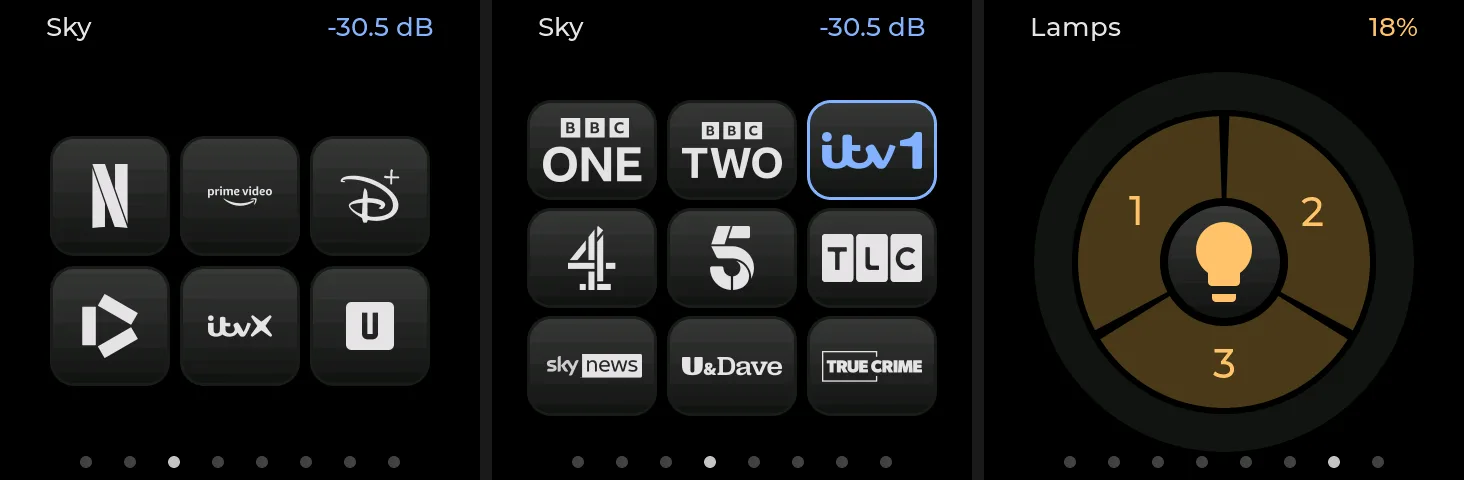
Smart TV apps is six tiles for Netflix, Prime, Disney+, iPlayer, ITVX and U. It only appears when the LG’s own apps are what I’m after, because they can’t be opened from another input. Tap Smart TV and the remote jumps to it.
Sky channels is nine favourites with their logos: BBC One and Two, ITV1, Channel 4 and 5, TLC, Sky News, U&Dave and True Crime. The logos are single-colour, tinted to match the rest of the icons. Home Assistant types the channel number into the Sky box, and lights the tile for whatever the box is really showing, which it reads from the box every five seconds. That took some finding out. The Sky integration in Home Assistant can only send keys, so Claude went looking and found the box answers on two local ports: a list of channels, and a UPnP call that reports what’s playing as a hex channel id. The first channel number Claude guessed for TLC turned out to be Sky Nature. I’d have missed that. It checked the box’s own guide and fixed it.
Lamps is the one I like to show people. It’s the click-wheel again, with three wedges that toggle my three living-room lamps, a lightbulb in the centre that toggles all three together (if any lamp is lit, a tap turns them all off; if none is, it turns them all on), and a warm white ring that dims or brightens whatever is lit. It’s always available, since I’m as likely to want the lamps when the TV is off. Two of the lamps are Yeelight and one is Govee, and I’d named them inconsistently over the years, so I renamed them to lamp_1 to lamp_3 first. That was one of those jobs where Claude asked for permission twice, rightly, because it was changing my live Home Assistant registry.
Making it honest about what it’s doing
The first version showed a result as soon as I tapped. That’s nice until the thing you asked for doesn’t happen. Turning on the TV from cold with CEC takes up to two minutes, because the first wake-up command only half works and the TV needs two or three. Claude found that by turning on CEC logging on the media box and reading the frames. It’s the TV, not the remote or Home Assistant, and I may try the TV’s quick-start setting.
So the remote now tells the truth about the wait:
- A tile I tap turns amber for five seconds, then goes blue. The top bar stays amber (“Starting Kodi”) until the real state arrives, so the tile says what I asked for and the bar says it isn’t there yet. That stopped me stabbing at it.
- A small tick appears once Home Assistant has taken the tap. If nothing has answered after three seconds, the bar goes red and says “No answer from HA”. I tested that by switching off the automation that listens for key presses.
- The apps and channels pages follow what I asked for, not what the TV is doing, so they appear straight away.
- Once everything’s off, the Off tile goes dim grey instead of blue, since there’s nothing left for it to do.
I also noticed switching between sources was slower from the remote than from Home Assistant’s own page, and asked why. Claude compared the two and found my scripts were waiting a fixed time for the TV and receiver even when they were already on. It added a “warm” path that skips the waits, with the old timing kept for the cases that needed it. Kodi got about seven seconds faster.
Where it went wrong
The pins didn’t agree. Waveshare’s example code disagreed with itself. The Arduino examples and the ESP-IDF examples had the display’s chip-select and the touch interrupt the other way round. Claude downloaded the schematic PDF, rendered the page and read the pin table off it. The site served an HTML page to a plain download, so it needed browser-style headers first. The schematic matched the Arduino numbers, and the board confirmed it.
It didn’t fit in memory. Waveshare’s example configuration left 52 KB free before Wi-Fi started, and Wi-Fi then failed to initialise. Claude trimmed it: no demo screens, a smaller graphics pool, smaller Wi-Fi and TLS buffers. It runs now with about 77 KB free and a low of 62 KB, which I know because the device page shows it. That’s less headroom than I’d like.
Key presses vanished. The remote reported sending them and Home Assistant saw nothing. A messaging-library call that looks like it queues a message quietly throws it away when you ask for the lightest delivery setting. Claude found it by rereading the library’s documentation.
Switching a power rail off silenced the speaker. While hunting for where the power goes, Claude switched off one of the power chip’s rails, and the beeps I was using as markers stopped, because that rail feeds the audio chip. I’d taken the silence for a crash, and Claude had told me it was one. It wasn’t, and I got the correction.
The motion sensor lied. It returned the same reading every time. Claude dumped the chip’s registers and found its own sample counter never moved. It only samples when the gyroscope is switched on as well, even if you only want acceleration.
Screenshots from the device
You can’t read a screen back from the panel itself. So Claude built a debug option that hooks the graphics library, walks through the pages and streams each frame out over USB, and a small script that turns it into PNGs. Every screenshot in this post came from the device that way. The photograph is the only exception.
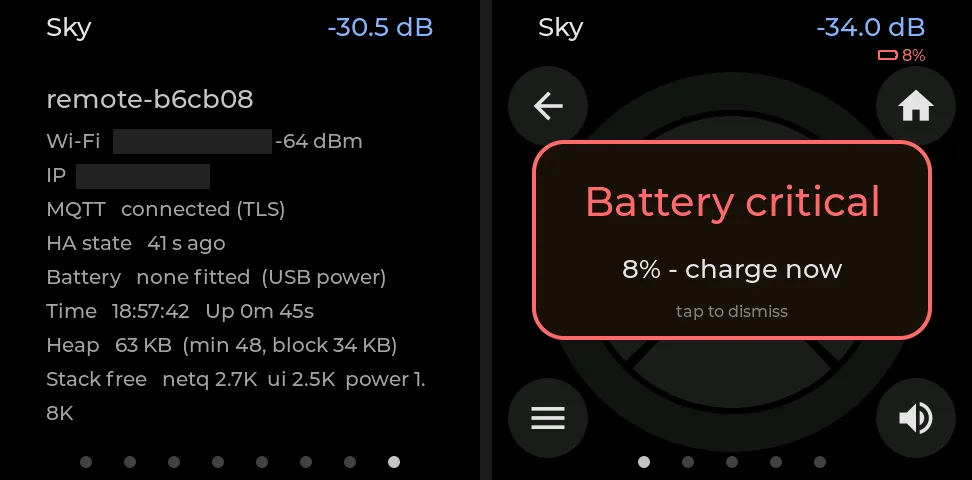
The battery warning on the right is real firmware running with the battery level faked, since there’s no battery to drain. The device page on the left has the Wi-Fi name and address covered.
Power, and what the meter said
I wanted to know where the 44 mA goes, so Claude built a test harness that steps through states while I read an inline USB meter: screen off, motion sensor off, Wi-Fi off, display chip asleep, light sleep. The screen costs about 8 mA and Wi-Fi about 8 mA. The motion sensor costs nothing I could see. But a floor of 28 to 31 mA stayed that nothing in the firmware explained, even with every spare power rail off. That’s probably board overhead on the USB side that won’t exist on a battery. We stopped, because measuring a battery’s draw through the USB port is the wrong place to look.
For five days on a 1,000 mAh cell the average has to be about 8 mA, so something more drastic than dimming is needed. Claude wrote that up with the options: Wi-Fi light sleep, deep sleep with the screen’s touch interrupt as the only wake-up, or going back to Zigbee. It recommended trying deep sleep before Zigbee, because the saving comes from sleeping, not from the radio. I said no changes until I have a battery to test with.
What’s left
The battery is the obvious one. The listing implied one was included. I’ve ordered a 1,000 mAh lithium polymer cell with a protection circuit, and it arrives on Thursday. The connector is still a question: the schematic shows a small two-pin socket that the store page calls a different type, and I’ve already bought crimp connectors for a third. I’ll check the plug fits and test the polarity with a multimeter before I connect anything. The charging current is Waveshare’s example setting, and I need to match it to the cell first.
I also don’t know the battery life. The USB figures say it’s well short of the Harmony Elite’s five days, until I build proper sleep. Real figures need a meter on the battery side. And I haven’t tried it in the case with a battery inside.
“Fully functional” means everything I use every day works: the eight pages, the activities, the volume ring, the Sky box, Kodi, the lamps. It doesn’t mean finished, but it’s close to being the thing I pick up every evening.
On not writing any of it
I’ve judged this code mostly by what it does, not by reading it the way I’d read my own. So I rely on what I can see: it works at the TV, a few small tests check the logic, and every commit was checked against my real passwords before it went in. Claude also wrote a design document and a security note as it went, which is more than I’d have done.
The next job is Thursday’s battery, and then finding out how long it lasts.